
Files, changes, terminals, and browser
Use the workspace panels to inspect what actually happened during a task. A conversation records the agent’s activity; the files and Git diff show what is on disk now.
The left sidebar keeps the visibility and width you choose when you resize the window or zoom the interface. Use its toggle or drag its divider to collapse it.
Expanding the right panel adds the current conversation as the first tab beside the tool tabs. Select it to return to the conversation without leaving the expanded layout; select a tool tab to switch back. The conversation draft is preserved. Choosing a conversation or starting a new one from the sidebar selects this conversation tab and keeps the expanded layout. Closing a tool returns to the most recently visited remaining tab, including the conversation; closing the last tool leaves the conversation tab open. Use the close button to close a tool tab. Exiting the expanded layout restores the conversation and tools side by side.
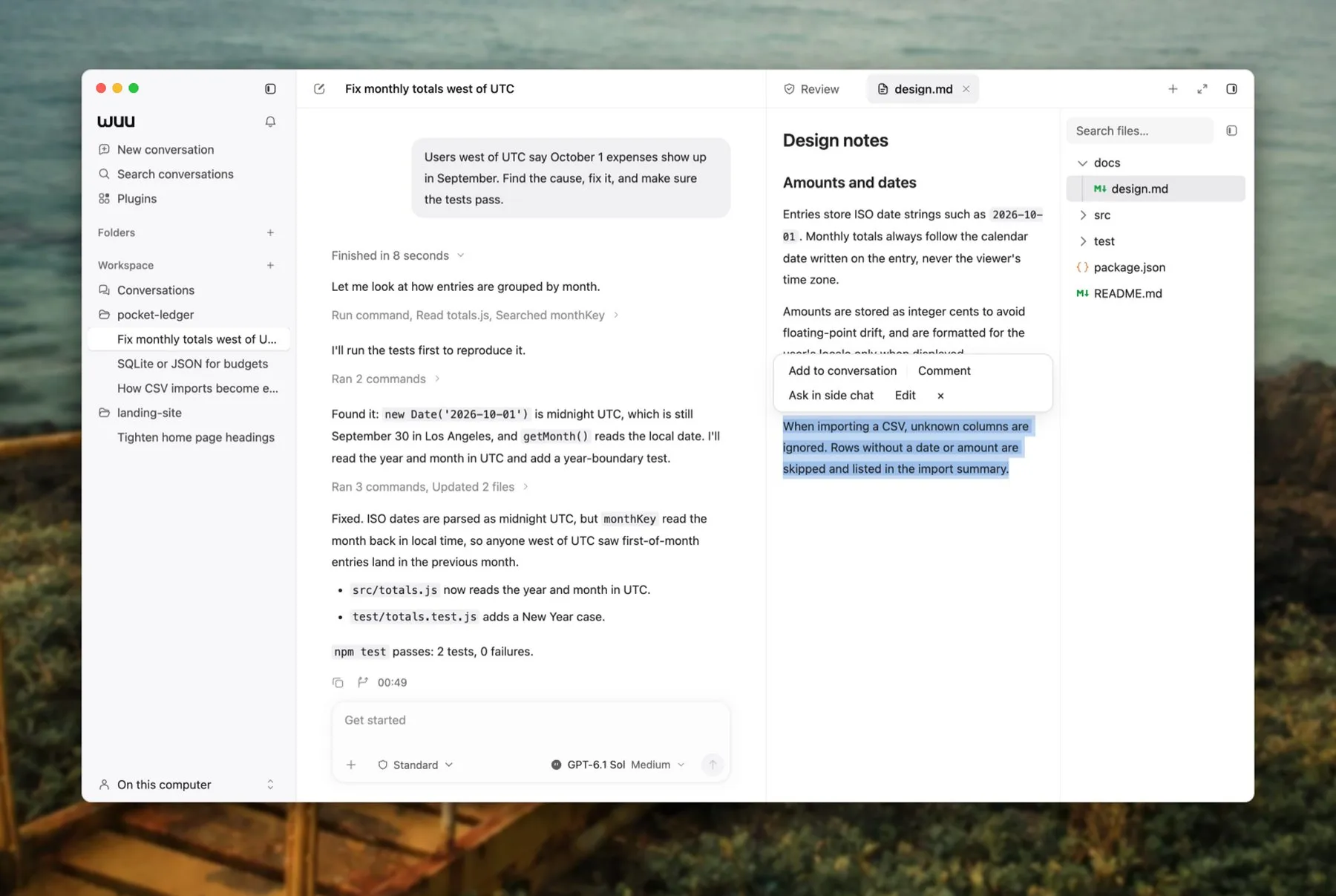
Select text in a file to bring the passage, an annotation, or a question into the conversation while the file stays in its tab.
Ask about the current page
Section titled “Ask about the current page”The Wuu mascot at the bottom right opens a question about the current page. Hovering keeps the page in focus; click to type, or right-click for Ask Wuu and Open chat. The latter becomes available after a conversation is created. Press Esc or click the mascot again to collapse the editor and keep its draft. Clicking elsewhere returns control to that page. With the mascot focused, Shift + F10 opens its menu; arrow keys select an action.
Side chat
Section titled “Side chat”The bundled Side plugin supplies /side and is selected in the recommended first-run setup. You can turn it off during setup or later in Settings → Plugins. Disabling it removes side-chat entry points and stops active side answers while preserving history; enabling it restores access.
Use /side or Ask in side chat to open the side chat tab in the right sidebar. It shares the sidebar width and expanded layout with files and other tools. File selections keep their quote card, and the original file stays available in its tab.
Side chat follows the selected main conversation; each conversation keeps its own side history and draft. Switching tool tabs or collapsing the sidebar preserves the draft and lets a running answer continue. Closing the side chat tab preserves its history; use the chat’s stop or reset action to interrupt or clear it. In the expanded layout, the side chat tab has its own input, while the main conversation remains available through its first tab.
App zoom
Section titled “App zoom”Press Command + + / − on macOS (Ctrl + + / − on other platforms) to resize the entire desktop interface. Command/Ctrl + = also zooms in; Command/Ctrl + 0 restores 100%. Zoom changes in 10-percentage-point steps between 50% and 200%. A percentage appears briefly in the center of the window. Your zoom is remembered across launches, independently of UI and code font sizes. These shortcuts apply to Wuu windows, not embedded browser pages.
Open Files or enter /files to browse the workspace. Select a file to view supported text, code, images, or documents. This view follows the current file, not its content at the time of an earlier message.
In a single conversation, opening a workspace file keeps the conversation visible and places its input at the bottom of the right preview. Requests from this input include the selected file as context. The draft belongs to the conversation: closing the preview returns it to the conversation input. Use the preview’s conversation menu to return to the full conversation, or minimize and restore the floating input while reading. The optional full-panel button gives the document more space.
For a PDF delivered in the current conversation, the preview input sends that exact snapshot as a PDF attachment. Workspace-file previews instead identify the selected file by its workspace path. Switching to another tool removes the preview’s implicit file context from subsequent requests.
Agent file search
Section titled “Agent file search”The agent’s grep and glob tools search current files when offset is omitted or 0. This also applies after external edits or reopening a conversation; a previous search cache does not establish that files are unchanged.
Later pages are a snapshot continuation, not a refresh. Keep the search arguments and pass both values from page.next: offset and expected_revision. Missing or mismatched tokens are rejected. A new first page can invalidate an older continuation even when the workspace revision summary is unchanged. If a continuation is stale, restart at offset: 0 without expected_revision. Searches observe files as they are read, not an atomic filesystem snapshot during concurrent edits.
Delivered artifacts
Section titled “Delivered artifacts”An agent can present a requested image, chart, or document as an output in the conversation. Images, including SVG, appear inline with a larger preview on click; other files appear as output cards.
Click an image or an image output card to open the full-window image viewer. Pinch the trackpad or hold Ctrl/Command while scrolling to zoom around the pointer; use two-finger scrolling or drag to move an enlarged image. Double-click to enlarge or return to fit. The toolbar offers Fit to window, Actual size, Rotate, and Save image as…. Save As lets you choose a filename and directory and keeps the original bytes, including animation; preview rotation does not change the saved file.
Keyboard controls: + / − zoom, 0 fits the image, 1 shows actual size, R rotates, arrow keys pan, Command/Ctrl + S saves, and Esc closes the preview.
These outputs are saved snapshots. Changing or deleting the original file later does not change the delivered version. A normal file link or diff is not an artifact snapshot.
On desktop, other file output cards open their snapshots in a workspace tab beside the conversation. PDF, HTML, audio, and text use their supported viewers; other formats retain a download action. HTML previews do not run scripts. Text previews load up to 2 MiB; download larger files to read them in another application.
When a live turn finishes successfully with exactly one delivered file, desktop can open it automatically after checking that the snapshot is available. Automatic preview supports PDF, HTML, and text up to 20 MiB (2 MiB for non-HTML text). Images open only when clicked. It does not fetch ordinary links or open file edits. Multiple files, unsupported formats, failed or interrupted turns, and historical conversations require a click.
Automatic previews leave an occupied panel and foreground browser alone. Using the panel during the turn, opening an overlay, or switching to a narrow window suppresses automatic opening for that turn. Navigation cancels pending preview checks, and closing a preview does not reopen it on later updates. Downloads always require an explicit action.
For agents and integrations, the built-in present_artifact tool accepts an existing local file:
{"path":"output/chart.svg"}The limit is 256 MiB. Normal read permissions and sensitive-path restrictions apply, and the tool does not fetch URLs. Presenting a file does not inspect its appearance or send its image bytes to the model; visual verification is a separate step.
Select text in a Markdown, code, or plain-text preview to use Add to conversation, Comment, or Edit. Adding to the conversation adds a quote card to the attachment tray without sending it or expanding the excerpt into the input. Open the card to read the original text; its remove button removes the selection. Sending the message includes the original text and source location. Comments appear below the document preview and as a quote card in the attachment tray; open the card to inspect the location, quoted text, and comment. You can edit or remove comments before sending several comments together with your message.
Choose Ask in side chat from a file selection to attach the passage to a side question. This requires an existing main conversation; the side composer shows the same quote card.
Edit opens a small instruction box at the selection. Submitting it sends an independent request to the current conversation without consuming your existing draft or attachments. A running task queues the request. The request instructs the agent to read the latest file before editing, and the preview refreshes when the turn finishes. A failed submission keeps your instruction available to retry.
Source locations refer to the file version captured when you selected the text. Comments retain their original excerpt if the file changes. Complex rendered blocks may be referenced as a whole when a precise source selection is unavailable. These selection actions do not yet apply to PDF or image previews.
Review
Section titled “Review”Open Review or enter /diff to inspect the current Git changes. Check the changed paths, additions, deletions, and any sensitive data before committing. Compare the agent’s reported checks with their actual command results.
Changed files are grouped by folder and the list refreshes as the workspace changes. A wide panel shows the diff beside the list; in a narrow one, choose a file to open its diff and use the back button to return. In the diff header, the arrows step to the previous or next file, the circle marks the file as viewed, and the pencil opens it in the editor. Viewed marks clear when a file’s status or added/deleted line counts change and are not kept after Wuu restarts. Edits with the same status and line counts do not clear a mark; review the current diff before committing.
The diff uses side-by-side columns when there is room and a unified view in narrow panes. Click or drag over line numbers to select changed lines, and expand collapsed unchanged regions for more context. Code font and size follow your appearance settings.
The diff shown for one turn can differ from the current workspace diff because later work may have changed the same files. Base your final review on the current repository state.
Terminal
Section titled “Terminal”Open Terminal or enter /terminal to run a shell in the workspace. Commands you type there use your OS permissions, including when the agent is in read-only mode. Review a command before running it; do not use the terminal simply to bypass an agent permission denial.
Agent commands also have activity entries and results in the conversation. Long output can be stored as a log reference. For long-running processes, use their process controls to inspect output, send input, or stop them. See commands and background tasks.
App snapshots on macOS
Section titled “App snapshots on macOS”App snapshots are disabled in this release. The settings entry is hidden and previously saved shortcuts are inactive. The instructions below apply only to builds that enable the feature.
App snapshots are an opt-in, read-only way to attach one visible app window to a conversation. They require macOS 14 or later and a desktop build with the Wuu App Snapshot helper.
Open Settings → General → App snapshot, set a shortcut and enable it. Changes save automatically. Click the shortcut button and press a new key combination to record it; Escape or leaving the button cancels recording. The current capture shortcut is paused while recording. Screen Recording permission is required; optional available window text also needs Accessibility permission. Grant the entry macOS shows for Wuu or Wuu App Snapshot in System Settings → Privacy & Security. These permissions do not turn on autonomous Computer Use.
Keep Wuu’s main window open, switch to the app window you want to share, and press the shortcut. The shortcut synchronously identifies that window before the capture helper starts. Keep it in front until capture finishes. Wuu returns to the active conversation draft, adds the screenshot and source information (including available text when enabled), and focuses the input. Existing draft text is preserved. You can inspect or remove the attachments before sending. The snapshot is sent to your selected model provider only when you send your message. Available text can include content outside the visible scroll area; secure Accessibility fields are skipped. Screenshots are not redacted, so review all visible content before sending them. Text is included only when a single app window can be associated unambiguously across the window and Accessibility APIs; multi-window apps and uncertain matches produce screenshot-only attachments.
Press the shortcut again while capture is running to cancel. Closing or reloading Wuu’s main window also cancels capture; a late result will not reopen a replacement window. Switching conversations or panes during attachment preparation rejects the result instead of redirecting it to another draft. If the target window changes, closes, or loses capture permission, Wuu discards that attempt rather than capturing a different app or the whole screen. Turning the shortcut off stops an in-progress capture. Attachments already in a draft can be removed there. It does not revoke macOS permissions; those remain under System Settings.
The shortcut starts disabled, and no background history or audio is recorded. Ad-hoc preview builds may need permissions granted again after an update. Native capture and permission behavior require macOS validation; browser/Electron UI checks alone do not establish that support.
Browser
Section titled “Browser”Experimental website tabs
Section titled “Experimental website tabs”In the experimental workbench, website tabs in the left ribbon retain their page while you switch destinations. Downloads, history, bookmarks, and address suggestions open above the live page. Hiding or minimizing Wuu keeps the selected page ready for restore.
Use Hide navigation ribbon above Settings to hide the ribbon while keeping a narrow frame around the rounded workbench, and Show navigation ribbon in the upper-left corner to restore it. Visibility is remembered across restarts, independently of the conversation sidebar. Restoring the ribbon keeps its previous width and selected destination; open website tabs stay loaded. Settings and the ribbon toggle keep their positions at the bottom left when you expand or collapse the right tool rail.
The left ribbon starts at a compact icon width. Drag its right edge to widen it and show names; the width is remembered across restarts. Drag left past the compact width to preview hiding the ribbon, then release to confirm. Pull back before releasing to keep it visible, or press Esc to cancel the drag. Showing it again restores the width from before the drag. Hovering or focusing an item does not change the width. Double-click the edge to switch between compact and expanded widths, or focus the edge and use Left/Right, Home or End. Hover an icon to see its name. Drag icons to reorder them, or use Alt+Up/Down when an icon has focus. Browser tabs provide pin, mute and close actions in their context menu; middle-click or Delete closes a tab.
Use Up/Down, Home/End to move keyboard focus through the tab list without changing the selected page; press Enter to select it. Alt + Up/Down reorders a tab. Pinned tabs omit the hover close button. A playing or muted tab shows an audio control, and its context menu can mute it independently of other tabs. Closing a background tab keeps focus in the page you are editing.
Tabs remember their order, selected tab, pinned state, zoom, and mute setting across restarts. Restored background tabs load when selected. Reopening a tab closed during the current run restores its back/forward history; it currently reappears at the end of the list. Restart recovery does not restore every page’s JavaScript state or unsaved form contents.
The history and bookmarks panel can remove individual history entries and rename bookmarks. The download panel keeps up to 100 finished records across restarts. Transfers interrupted by quitting appear as interrupted; Wuu does not claim they can resume after restart. Files already downloaded remain on disk.
Camera and microphone requests are granted separately for the requesting tab and origin. Screen sharing requires a foreground user page, explicit source selection, and confirmation. The picker shows screens and windows with previews; it shares video only. Agent-controlled pages and embedded frames cannot initiate this flow. Operating-system recording permission is still required.
Persistent-storage requests from the site loaded directly in a website tab are granted automatically, so its local data is not evicted under storage pressure. Embedded cross-origin frames and Agent-controlled pages cannot use this permission.
Ordinary background tabs become eligible for memory reclamation after 30 minutes without selection; Wuu checks once a minute. Selecting a reclaimed tab reloads its page, restoring navigation history, zoom, and the saved scroll offset. Cookies and the shared browser profile remain intact. Page scripts start again, so pin a tab if its background work must remain running.
The selected tab is kept even when Wuu is hidden. Pinned tabs, edited forms, playing media, captured pages, active downloads, automation, and pages that refuse to unload are protected. Pages with embedded frames, session storage, editors, live opener connections, or changed background titles/icons also stay resident because Electron cannot restore all their live state. This conservative policy does not promise a particular memory reduction or replace macOS visual acceptance.
The eligibility model follows Chromium’s discard policy; history restoration uses Electron navigationHistory.
In the experimental website tabs in the left ribbon, ordinary links navigate the current tab. A website can request a new tab or a popup itself. Command-click on macOS, Ctrl-click on other platforms, middle-click, and Open Link in New Tab keep the current page selected while opening a background tab. Add Shift to Command/Ctrl-click or middle-click to select the new tab; Shift-click opens a separate website window that survives navigation or closure of the source tab. Closing the main Wuu window closes its separate website windows. These website gestures are separate from the message-link behavior below.
Conversation browser
Section titled “Conversation browser”Open Browser or enter /browser to view a page in the workspace panel beside the conversation. That panel and the page the agent is using are the same tab: the address bar, back, forward, and reload all drive it. Clicking a web link in a message, a turn source capsule, or a compact browser activity row also opens or focuses that panel and navigates to the page. Hold Command (Ctrl on Windows) or middle-click to open it in the system browser instead. If you are already using another workspace tool, the page still navigates in that tab and does not steal the panel.
Desktop browser automation is available by default. The active conversation can show the Agent’s page in the live activity preview, including during background browser actions. Open the browser or expand the preview to use that same page in the panel. Showing the page in the panel replaces its floating preview. Set WUU_ENABLE_BROWSER=0 before launching Wuu to hide the automation tool.
Each conversation owns its browser tabs, including pages opened in a new window. Listing or cleaning up tabs in one conversation leaves other conversations’ pages alone. Tabs still share the app’s browser profile and signed-in sessions; task ownership is not a separate login profile.
Page-opened windows keep their original content and opener connection, including script-filled blank pages and forms submitted to a new window. When a turn finishes or is interrupted, Wuu closes temporary task pages and releases automation control. Pages you opened or took over, pages retained for handoff, and deliverables stay available. Keeping a popup also keeps its live opener so messaging and review context continue working. A later instruction can use a retained page with fresh control authority.
Clicking or typing in the Agent’s page, submitting an address, or using its navigation buttons pauses the current task and leaves the page available for you to use. Hovering and scrolling alone do not pause it. Send your next instruction in the conversation when you are ready to continue; background updates do not restore browser input. Use the conversation’s Stop action to interrupt a task.
The floating preview and workspace panel share an animated pointer. It stays legible when the page is scaled, moves to the target before input, and shows click, typing, and scroll feedback. Direct page input clears it. Reduced-motion settings disable travel and idle movement.
To route only the embedded browser through a proxy, set WUU_BROWSER_PROXY before launching the desktop. For a source build:
WUU_BROWSER_PROXY=http://proxy.example:7897 npm run dev --prefix desktopUse the address and port of your own proxy. This setting does not configure model API or app-server traffic. If browser requests fail after enabling it, check the proxy and restart Wuu with the corrected setting.
Local browser extensions
Section titled “Local browser extensions”Open Settings → Browser → Browser extensions → Load unpacked and choose a self-contained folder with manifest.json. Before any extension code runs, Wuu shows its API permissions, website and content-script matches, optional declarations, and known compatibility limits. Cancel is the default. Only approve extensions you trust: matching pages in the shared browser profile include pages opened by you and the Agent. File URL access stays disabled.
Wuu keeps an installed copy and restores enabled extensions on restart. Expand a row for its version, ID, source, status and permissions. Disable or remove an extension to unload it; reload open pages to remove scripts that already ran. Removing the entry leaves its source folder and browser data intact. To apply a local update, enable the extension and choose Reload. New required or optional permissions need another review, and a failed load restores the previous working copy. Wuu does not download updates.
These browser extensions are separate from Wuu TypeScript plugins. Electron supports a subset of Chrome’s extension API, so loading successfully does not establish full compatibility. Extensions that declare an options page have a settings button. The page opens in an isolated window using the same browser profile and closes when its extension is disabled or its Wuu window closes. Chrome Web Store/CRX installation, toolbar actions and action popups are not provided. Manifest V3 background service workers may not work. Legacy direct-folder installs need review before migrating to an installed copy; keyless extensions receive a new ID, and old data is retained without automatic migration.
Live activity preview
Section titled “Live activity preview”Computer Use calls show a short action title supplied by the Agent, such as “Observe the current window in Wuu Dev”. Expand the record to inspect the original tool name, arguments, output, and errors. The title describes intent, not confirmation that the action succeeded. Older records without a title retain their original display.
A conversation can retain separate watch-only previews for each browser tab and supported local app window. Only the selected conversation shows its conversation-column stack, with up to five cards visible at once. Native app previews floated on the desktop leave that stack and stay visible when you switch conversations. New targets lead the stack; dragging a card behind the front one raises it temporarily and brings it to the front on release. Cards overlap diagonally from a shared corner, with a common size limit that preserves each target’s proportions. Hiding or closing one target leaves the others in place and lets the next retained card appear. Returning to the same target updates its existing preview. After a successful turn, visible previews show completion and leave after 30 seconds; stopped or failed turns dismiss the stack. A minimized or hidden target app stays where you put it, and its preview waits until you show it again. Moving or resizing a preview does not send input to the target.
Local activity opens its preview automatically; there is no auto-show preference. Showing a preview does not enable an extension or give the Agent control. Hiding a preview leaves the task running; later activity updates do not reopen a preview you hid. There is no title-bar control for manually reopening a hidden preview.
Previews appear while their Wuu window is visible, without activating it or taking keyboard focus from another app. Hiding or minimizing Wuu hides the conversation stack too; floated native previews stay on the desktop. Closing the Wuu window closes floated previews. Restoring Wuu shows only eligible cards that were not explicitly hidden. Foreground image viewers and dialogs hide the conversation stack, while floated previews stay on the desktop. Drag the front card to place the stack in a corner of the conversation column, clear of the composer, or resize it from an edge or corner. Browser pages keep their layout size and scale to fit. Previews follow the app’s appearance and text settings and respect reduced motion.
Browser previews provide Hide and Open in side panel controls; native app previews provide Hide and a desktop toggle:
- Hide preview hides the card and leaves the task running.
- Open in side panel opens a browser page at full size.
- Float on the desktop detaches a native app preview from the Wuu window and parks it at a free corner of the current display. It floats above other applications and remains visible while Wuu is hidden or you switch conversations; it stays in the macOS Space where you place it. Drag it to another screen corner, or use Return to the conversation to dock it back into the column stack at the stack’s shared size.
Use Stop in the conversation to interrupt the task. To take over a browser page, open it in the side panel and click or type in it. This does not bring retained native apps to the foreground. Send another instruction in the conversation to continue with fresh control authority.
Hiding the preview or stopping the task does not quit the application being observed. Disabling or retiring the owning extension stops its preview activity. If a capture target disappears, Wuu closes its preview; unchanged activity updates do not reopen that target. Unavailable capture shows a brief recovery hint, and a retained frame is labelled paused rather than live. Individual tool errors stay in the conversation’s tool records and do not cover the preview. The preview does not silently switch to another app window or the whole screen.
On macOS, native app previews use a low-latency H.264 video stream with hardware acceleration where available. Hiding or pausing the preview stops capture; resuming or resizing it refreshes the video, and decoder recovery stays on the same target window.
Native app previews require a build with the platform’s Computer Use helper. macOS requires Screen Recording and Accessibility permissions. Linux previews require an X11 session and remain bound to the observed window and process. The floating preview does not itself grant control or capture permissions. See installation for build availability and permissions.
Linux app control
Section titled “Linux app control”Linux Computer Use operates windows in an X11 desktop session. Enable Computer Use for Linux in the extension settings. The desktop package must include wuu-cua-linux, and the session must provide XTEST input and XComposite capture. It does not require a root input daemon.
The Agent discovers a window, observes it, and uses its snapshot for mouse and keyboard input. Window identity includes the process and X11 window ID; closing or replacing the target requires a new observation. Input uses the foreground window, so controlling another app can bring that app forward. This is not background app control.
Text input uses characters available in the active primary keyboard layout. Unmapped characters and incompatible keyboard states return an error before typing; this version does not provide arbitrary Unicode clipboard paste or change the system keyboard mapping.
The PiP uses the same watch-only controls and layout as other activity previews. Hiding it stops its capture without stopping the Agent. A missing or unavailable target does not fall back to another window or the full desktop.
Native Wayland sessions are not supported, including sessions where XWayland exposes a DISPLAY. Use an X11 login session for this version. No desktop permission settings are changed automatically. Linux does not provide the macOS Accessibility tree, semantic text editing, or background-focus behavior described below.
Mac app control
Section titled “Mac app control”In builds with Computer Use enabled, the Agent can work in a background app while your current app stays in front. The preview’s existing cursor shows its actions. Background focus support keeps menus available between steps; applications that require foreground input still need an explicit foreground action. Stopping or taking over app control releases background focus even between tool calls.
Text operations include plain text, Markdown and HTML paste, selecting a unique text match, and placing the insertion point before or after it. Paste restores the previous clipboard unless another app or you copied something in the meantime. Clicks support modifier keys and holds; held keys and mouse buttons are released when an action is cancelled.
After input, Wuu waits briefly for Accessibility and visual changes to settle before returning or taking a requested follow-up observation. This does not prove that a save, navigation or other asynchronous task has finished: the Agent must still check the intended result.
Observations include control relationships, focused text and selection ranges, and changes since the previous comparable snapshot. Large trees remain paged, with child reads bounded by the remaining node budget. Limits and failed child reads mark the observation as incomplete and identify the affected nodes. Re-observe after a read failure, or expand a subtree after reaching a limit; paging only retrieves what was already observed. Incomplete observations do not report confirmed removals or authorize a unique-label activation; use a freshly observed element ID for a specific control. Input that uses elements or coordinates still needs a fresh snapshot, even when a control keeps its element ID. The Computer Use skill includes workflows for Notion blocks, Spotify playback and library updates, native text editors, and web-based editors.
Find an action
Section titled “Find an action”Type / in the composer to search workspace actions, prompt shortcuts, and skills. Disabled entries explain missing prerequisites such as a workspace, an idle conversation, or engine support.